Admin dashboard
The admin dashboard is for workspace owners and admins. It shows who is in the workspace, what they have, who is signed in, what changed, and how AI features are set up. Owners also bring back lost work from backups. It exists only in workspaces with sign-in. Some sections are for owners only.
Open the dashboard
Use any of these:
- Admin in the top bar of the home screen.
- Admin under Account in the board menu.
- The address
#/admin.
Members and guests do not see these links and are sent back to the home screen if they open the address. The Backups section is for owners only. Admins do not see it, and its address shows them the Overview. Use the arrow at the top left to return to Boards.
The dashboard has a list of sections on the left. The address changes with the section, so reloading or going back returns you to the same one.
Row actions need two clicks
Actions that remove access or data (Disable, Remove, Sign out everywhere, Archive, Delete, Revoke) are confirmed by clicking twice. The first click changes the button to Click again. Click again to run it. If you move away from the button, it resets and nothing happens.
Buttons you are not allowed to use are disabled, and hovering shows why. Only an owner can act on an owner, and the last owner cannot be demoted, disabled or removed.
After each action the row updates in place and a short message confirms it.
Overview
Counts for the whole workspace:
- Members, by role, and Disabled members.
- Teams, with the number archived.
- Boards, with the number deleted.
- Active sessions and Sign-ins, last 7 days.
- Live connections, with the number of boards open right now.
Below the counts, Instance lists the server address, how email is sent, the version, and whether accounts are on.
On a hosted workspace, the owner also sees Manage billing. It opens the billing portal in the same tab, where you change the plan, add seats and update the payment method. Admins who are not owners do not see it.
<!-- screenshot: Overview section with the stat tiles and the Instance list -->
Members
A searchable list of everyone with an account: name, email, role, last activity, active sessions, number of boards they own, and teams.
- Change someone's Role with the menu.
- Disable blocks sign-in and ends their sessions. Enable turns it back on.
- Sign out everywhere ends all of their sessions without disabling them. You can use it on yourself.
- Remove deletes the account, signs the person out and removes their access.
The role names are explained in Sharing, roles and teams. On a hosted workspace with a seat limit, enabling a person or promoting a guest can be refused when all seats are in use.
Teams
Every team, including archived ones, with its member count. Archive hides a team from the home screen. Its boards stay available. Unarchive brings it back and needs no confirmation.
To rename a team or manage its people, use Manage on the home screen.
Boards
Every board in the workspace: title, team (or Personal), and when it was last edited. Use the search box to filter by title.
- Open goes to the board.
- Delete removes the board for everyone who has access.
- Turn on Show deleted to list deleted boards, marked Deleted. Select Restore to bring one back. Restoring needs no confirmation.
As an admin you can open a deleted board to look at it. It opens read-only with a Deleted board badge until you restore it.
Sessions
Each row is a sign-in: the person, when they signed in, when they were last seen, and when the session expires. Revoke ends one session and signs that device out. Your own session is marked This session and its button reads Sign out.
Access tokens
Active personal access tokens for AI tools, across the workspace: whose it is, its name and access level, which boards it covers, when it was last used and when it expires. Revoke stops a token at once. The section appears only when AI tool access is turned on for your server.
AI
The AI tab turns AI features on for the workspace and sets what they use: the features, the model, whether people may use their own keys, whether guests are included, the hourly limits, and the workspace key. Unlike Access tokens, the AI tab is always listed in a workspace with sign-in, even if your server cannot store keys yet.
AI features are still being built. Turning them on and choosing features does not change what people can do yet.
The tab has these settings. The defaults are off, with every feature selected, no personal keys, guests allowed, and 20 runs per person and 200 per workspace each hour.
- Allow AI features in this workspace: turns AI on or off.
- Features: Generate stickies, Summarise and Cluster stickies. Choose the ones people may use.
- Model: Claude Opus 5.5 (the default), Claude Sonnet 5.5 or Claude Haiku 5.5, for an Anthropic key. With an OpenAI-compatible key the model is part of the key (below), and this setting is replaced by a read-only Model line that says it comes from the key.
- Personal keys: People can add a key of their own, which they use instead of the workspace key. When this is off, only the workspace key is used.
- Guests: Members only: guests cannot use AI features or add a key. Turn this on to keep guests out.
- Runs per person per hour and Runs per workspace per hour: whole numbers from 1 to 1,000 and from 1 to 10,000.
Select Save settings to save. The button is enabled only when something has changed and both limits are valid. The page names the problem if a limit is not a whole number in range. Each save shows AI settings saved.
Workspace key
The workspace key is used by everyone who has no key of their own. Without one, only people with a personal key can run AI features.
- Choose the Provider: Anthropic, or OpenAI-compatible (NVIDIA's catalogue, OpenAI, OpenRouter, a model server of your own). For OpenAI-compatible, also fill in Base URL (
https://…, a public address) and Model. Then paste the API key. If a key is already stored, the field is Replace with a new key. - Select Save key, or Replace key if a key is already stored.
The provider checks the key before anything is stored. While it checks, the button reads Checking…. If the check fails, nothing is saved, the message explains why, and the key stays in the field so you can fix a typo. A successful save shows Workspace key saved.
After saving, the tab shows only the last four characters, for example Anthropic key ending …a1b2, with when the key was added and last used. The full key is never shown again. To change it, paste a new one and select Replace key. To remove it, select Remove, then Click again to remove.
Select Test key next to Remove to check whether the saved key still works. The check leaves the key and its “last used” date alone, and shows a short result below it. Tests count towards the same hourly limit as saving a key, and are recorded in the audit log without the key.
If the server can no longer read the stored key, the tab warns you. Enter the key again to fix it.
If the tab says the server cannot store keys, you can still change the settings above, but no key can be saved until whoever runs your Tabula server fixes this. Ask them.
For a person's own key, see Your AI key.
<!-- screenshot: AI tab with the settings, and the workspace key line showing the last four characters -->
Chat
The Chat tab appears when your server has chat turned on. Each setting is saved as soon as you change it.
- Workspace channel: whether everyone except guests has one workspace-wide chat. Turn it off and the channel disappears from the Chat page until you turn it back on. Nothing is deleted.
- Viewers: whether people with view-only access to a board may post in its chat. They can always read it.
- Keep messages: 1 year (the default), 90 days, 30 days or Forever. Once a day, messages older than this are deleted, with their mentions and reactions. Backups keep deleted messages until the backups expire.
The audit log has a Chat filter. It shows changes to these settings, messages that an owner or moderator removed, and the daily clean-up as one line with a count. It never shows what a message said.
<!-- screenshot: Chat tab with the three settings -->
Backups
The Backups section is for the workspace owner. Backups are copies of everything in the workspace, stored away from the server and encrypted before they leave it. Here you see how they are going and bring back one board or the whole workspace.
It is listed for every owner. When backups are off it says Not set up. On a hosted workspace it offers Add backups, which opens billing in the same tab. On a server you run yourself it links to this page: turn backups on with the settings below, then restart the server.
Turn backups on
Only for a server you run yourself. Backups are on when these five settings are all set:
TABULA_BACKUP_S3_ENDPOINT: the address of the storage, for example a Tigris, Cloudflare R2, Backblaze B2, MinIO or AWS S3 endpoint.TABULA_BACKUP_BUCKET: the bucket.TABULA_BACKUP_ACCESS_KEYandTABULA_BACKUP_SECRET_KEY: the credentials for the bucket.TABULA_BACKUP_KEY: the encryption key, 32 random bytes as 64 hex characters. Make one withopenssl rand -hex 32.
Lose the key and the backups cannot be read by anyone. Keep a copy somewhere that is not the server. The other settings (how often, how long to keep backups, a key change) are described in the server documentation, docs/backups.md in the Tabula repository.
When backups run
Backups run on a schedule (how often is shown in the status). They also run shortly after people stop editing: about two minutes after the last change, and at the latest ten minutes after the first change that is not yet in a backup. When the server is asked to stop, for example when an idle hosted workspace shuts down, it takes a last quick backup of what changed. So a short visit is no longer lost between two scheduled backups.
A crash, or a stop without warning, can still lose the last couple of minutes of changes from the backups. The data on the server is not affected.
Status and list
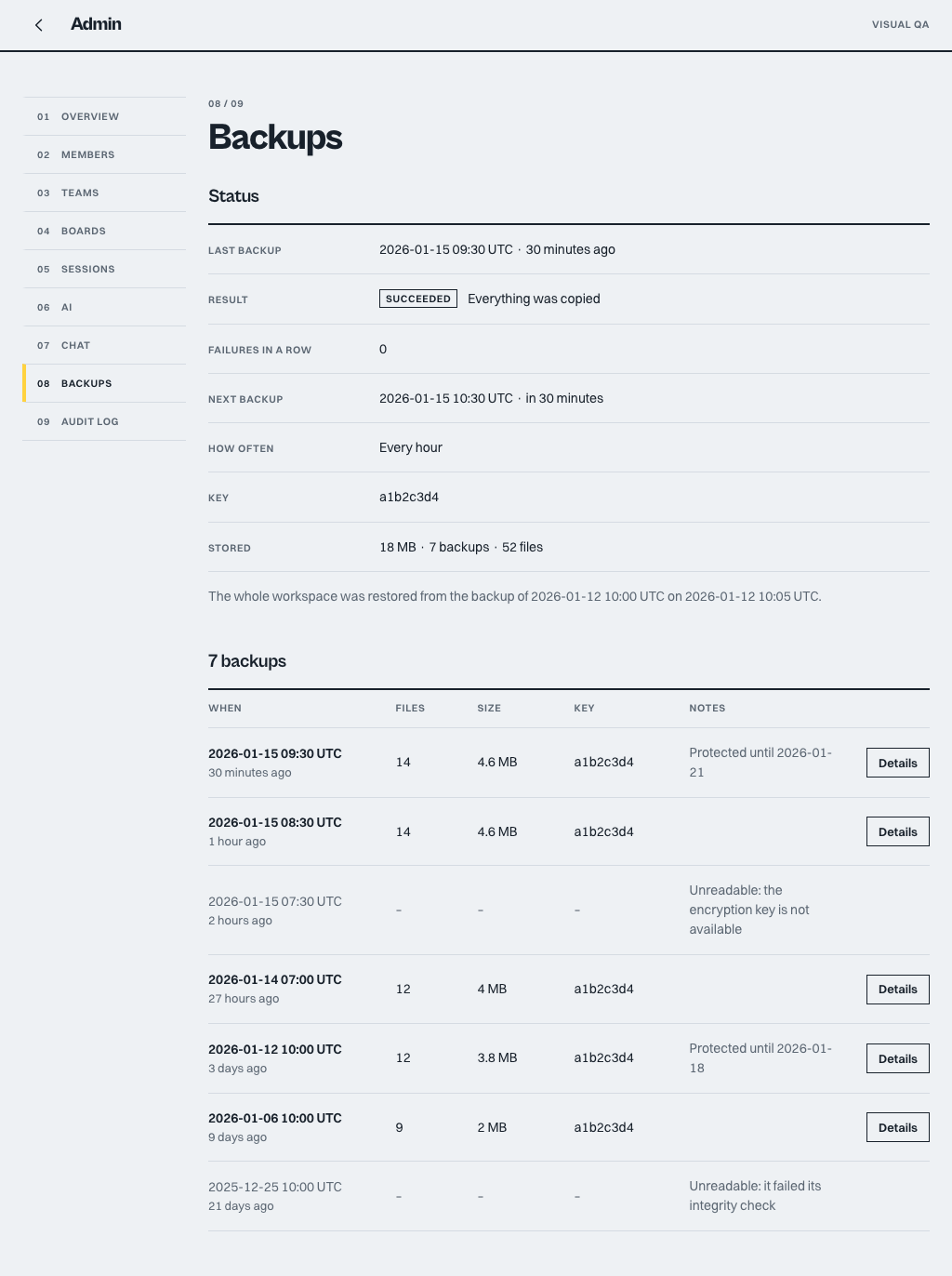
The top of the section shows the last backup and whether it worked, how many in a row have failed, when the next one runs, how often they run, the key's short id and how much is stored. A sentence below says how the last restore ended and when.
Below that is the list, newest first. Each row has the time (UTC, and how long ago), the number of files, the size, the key and a note:
- Protected until a date: the backup cannot be deleted by the normal clean-up until then. A backup you restore, and the safety backup made before a whole restore, are protected for 7 days.
- Unreadable and the reason: the backup is grey and cannot be opened, for example because it was sealed with a key this server does not have, or because it failed its integrity check.
The list shows at most 200 backups. Select Details on a row to open that backup.
One backup
The backup opens in place. It shows when it was made, the version of Tabula, how many files and boards it holds, its size and key, whether there is room on the server for a whole restore, and how long the current data would be kept after one. There are two things to do:
- Restore a board as a copy adds one board of the backup to your workspace as a new board. Nothing else changes.
- Restore the whole workspace replaces everything with the backup.
Restore a board as a copy
Search the boards of the backup by title or team, pick one and select Make a copy. The new board is named Restored: and the old title and the date, you own it, and it starts without version history. The board you have now is not touched. A link to the new board appears when the copy is ready.
The copy goes into the board's original team if that team still exists and you are in it. Otherwise it goes to your personal space and the page says so. You can make more copies from the same backup. If a hosted workspace is read-only, the button is off and says why.
Restore the whole workspace
This replaces people, teams, boards, comments, version history and settings with what the backup holds. The page lists what will happen before you can go on:
- Everybody is signed out and has to sign in again. Access tokens and invite links are revoked.
- The workspace is unavailable for about a minute while the server restarts.
- A safety backup of the current data is made first. If it fails, nothing changes.
- The current data is moved aside, not deleted, and kept for 7 days, or on a nearly full disk until the next successful backup and at least 24 hours. The page says which applies and why.
- Edits made after the backup was taken are not in it. They exist only in the old data that is kept aside.
Type RESTORE in capital letters, with no spaces, and select Restore this backup. The button stays off until the word is exactly right, and while there is not enough free disk space on the server. The page says how much is missing. Only one whole restore can start in 10 minutes.
When the server accepts it, the whole window shows Restoring…. The page checks the server every few seconds and reloads when it is back. Then everybody signs in again. If the server has not come back after 3 minutes, the page says it is taking longer than expected. Select Check again to start over, or reload the page. A board that is open when a restore starts shows Restoring… too and reloads in the same way, and after you sign in you are taken back to that board.
If something fails before the swap, nothing changes and the page says why in plain words, for example that there is not enough disk space or that the safety backup failed. If the whole workspace cannot be restored, the server starts again on the data it had before.
Backups
Only owners see the Backups tab. It sits between AI and the audit log. Admins who are not owners do not see it, and its address shows them the Overview.
If backups are not turned on, the tab says Not set up. On a hosted workspace it has an Add backups button that opens billing, the same way Manage billing does. On your own server it points to the setup steps and the person who runs the server.
When backups are on, the tab shows:
- Status: when the last backup ran and whether it worked, how many failed in a row, when the next one is due, how often they run, the key's short ID and the size stored. One sentence says what happened to the last restore.
- All backups: newest first, with the time, the number of files, the size and the key. A backup shows Protected with a date while it cannot be removed, for example after a restore. A backup the server cannot read is greyed with the reason and cannot be opened. Only the newest backups are listed.
Select a backup to see its details: the app version, the counts, the key, the free disk space, and how long the current data would be kept after a restore. Use Back to the backup to return from the screens below.
Restore a board as a copy
Use this to get one board back without touching anything else.
- Open a backup and find the board under Boards in this backup. Use Search the boards of this backup to filter. Only the 500 boards edited most recently are listed.
- Pick the board, then select Make a copy.
- A message says The copy is ready with a link to the new board.
The copy is a new board named Restored: <title> <date>. The live board is not changed. The copy goes to the board's original team if it still exists and you are in it. Otherwise it goes to your personal space, and the message says so. The copy has no version history. A board with no saved content in the backup cannot be copied. On a hosted workspace that is read-only, Make a copy is off and says why.
Restore the whole workspace
Use this only to go back to an earlier state of everything: people, teams, boards, history and settings.
- Open a backup and select Restore the whole workspace.
- Read What will happen. A safety backup of the current data is made first, and if it fails nothing changes. The workspace is unavailable for about a minute while the server restarts, and everyone is signed out. The current data is moved aside, not deleted, and kept for the time shown.
- Type the word shown to confirm (
RESTORE). Restore this backup stays off until you type it exactly, and while there is not enough disk space. - Select Restore this backup. The window shows Restoring… and reloads when the workspace is back. If it takes longer than expected, the screen says so and offers Check again.
Anyone with a board open sees Restoring… in the status chip and the board reloads when the workspace is back. Everyone signs in again afterwards.
Do a practice restore before you need one. A backup you have never restored is not proven.
<!-- screenshot: Backups tab with the status and the list of backups -->
Audit log
A record of changes, newest first. Each entry reads as a sentence, for example who changed whose role. Actions the system takes on its own, such as the trial-ending notice to workspace owners, show System as the person. Backups and restores read as sentences too, naming the backup by its date. Hover an entry to see the underlying action name.
- Filter by All, Members, Teams, Boards, Templates, Invites, Sign-ins, Sessions, AI, AI tool access, Images, Chat, Backups or Restores. The AI filter shows changes to the AI settings and when keys are added, tested or removed; AI tool access shows access tokens being created and revoked (with their names, never their secrets). Backups shows the automatic backup runs (and failures, and how many damaged or missing files a run put back) and when an owner looked at them; Restores shows whole-workspace restores, board copies and when the old data of a restore was removed, with the date of the backup each came from.
- Select Load more to go further back.
Entries with no person are shown as the system, for example when a hosted workspace is locked or unlocked.
Related
- Export and import for saving one board yourself
- Sharing, roles and teams
- Access tokens and AI tools
- Your AI key