Boards and the home screen
The Boards page lists your boards and is where you create, open, import and delete them. It looks slightly different when your workspace uses sign-in.
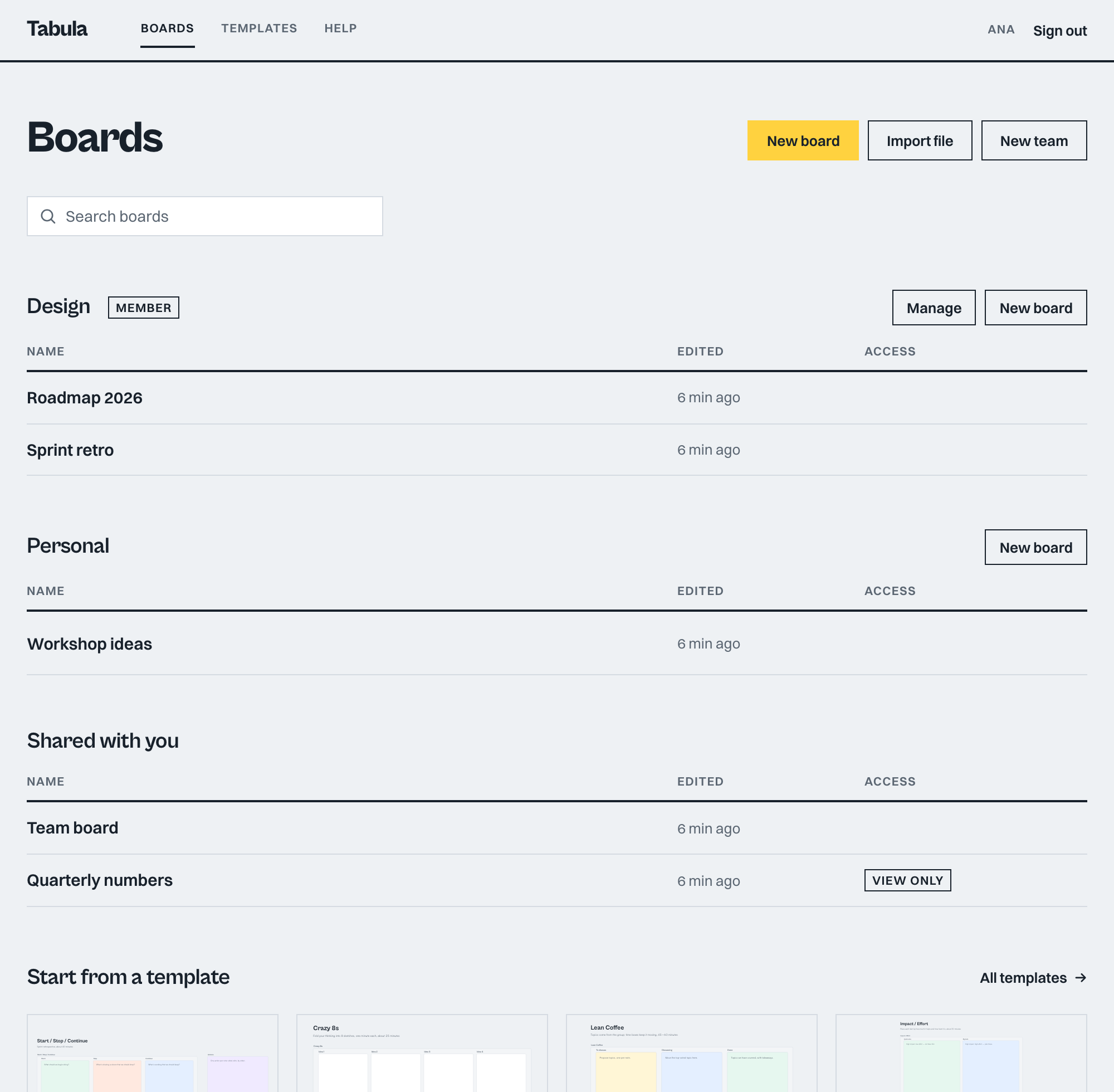
The Boards page
The top bar has the Tabula wordmark (click it to return here) and the links Boards and Templates. If your workspace uses sign-in, you also see your name and Sign out. Workspace owners and admins also see Admin.
Below the top bar:
- New board creates an empty board and opens it.
- Import file creates a board from a
.driftor.jsonfile. See Export and import. - Search boards filters the list by title as you type.
- A Start from a template row with up to four templates, your own saved templates first, and an All templates link. See Templates.
Open mode
If your workspace has no sign-in, the page shows one table, Your boards, with each board's name and when it was last edited. These boards are stored in this browser. A board you did not create appears here after you open its link once.
Click a board name to open it. A board that someone shared by link has the same address in the browser, so you can also bookmark it.
Workspaces with sign-in
When your workspace uses sign-in, the page groups boards:
- One section per team you belong to, with a badge showing whether you are an Admin or Member of it. Manage opens the team's settings, and New board in that section creates a board for the team.
- Personal holds boards you own that belong to no team.
- Shared with you holds boards that other people shared with you. For owners and admins, this section is called Other boards.
- On this device lists boards stored only in this browser. Add to workspace moves one to Personal or to a team, so others can reach it.
The table has an Access column. A badge appears only when your access is limited: View only or Can comment. No badge means you can edit.
Owners and admins also see Members and New team buttons. Other people, except guests, see New team. For teams and roles, see Sharing, roles and teams.
If your workspace has a banner message, it appears at the very top. If the server cannot be reached, a note says You are offline. Showing the last list from this device. and buttons that need the server are disabled.
Open a board
Click its name in the list. You can also paste a board link into the address bar. In a workspace with sign-in, you need access to the board for the link to work.
To go back, choose the All boards button (house icon) at the top left of the board.
Rename a board
Click the board name at the top left of an open board, type the new name and press Enter. An empty name becomes Untitled board. On a board you can only view, the name is locked. Starting from a template names the board after the template, and you can rename it.
Delete a board
Choose the trash icon at the end of a board's row, then confirm with Delete board.
- In open mode, and for boards under On this device, this removes the board from this device only. Copies on a sync server or on other people's devices remain.
- In a workspace with sign-in, only the board's owner sees the delete button. Deleting removes the board for everyone who has access. A workspace admin can restore it. See Admin dashboard.
Board settings
In an open board, choose Menu, then Board settings. It is unavailable on view-only boards.
- Grid. Choose Dots, Lines, Isometric or None.
- Grid size. 8, 12, 16, 20, 24, 32, 40 or 48.
- Snap to grid. When on, moving and resizing snap to the grid. Hold
Altwhile dragging to ignore it for one move. Snapping is off in effect when the grid is None. - Heading font and Body font. Used for new notes, shapes and frames.
- Relay. The sync server address. auto uses the server that serves the app, and off keeps the board on this device only. Changing it reloads the board. Leave it alone unless your administrator told you to change it.
These settings belong to the board and are shared with everyone on it.
Board menu
The Menu button at the top right has these sections:
- Account (workspaces with sign-in): your name and email, Sign out, Sign out everywhere, and Admin for owners and admins. If your administrator turned on AI tools, AI tool access appears too. If they let you use your own AI key, Your AI key appears as well. See Access tokens and AI tools and Your AI key.
- Board: Board settings, Save board as template (Templates), Version history (Version history), Your name and colour, Show comments (Comments), Import a board file into this board, and Import Mermaid.
- Appearance: the colour themes. See Themes.
- Export (or Export selection when something is selected): PNG, SVG, board file, JSON, Markdown summary, and Copy as Mermaid. See Export and import.
- Help: Keyboard shortcuts.
Items that change the board are greyed out when you can only view it.