Chat
Chat is a running conversation. Each board has its own, each team has one, and the whole workspace can have one. It appears only if your workspace has sign-in and whoever runs your Tabula server has turned chat on. If you do not see a Chat button or link, it is not available for you.
Comments are attached to a place on the board and are for discussing one thing. Chat belongs to the whole board, team or workspace and is for talking while you work.
Where to chat
- Board chat: everyone who can open the board. It is in the right-hand panel on the board, next to comments.
- Team chat: the members of a team, including guests who belong to it. Workspace owners and admins can read every team's chat and remove messages, but they can post only in teams they belong to. When a team is archived, its chat is read only.
- Workspace chat: everyone in the workspace except guests. An admin can switch it off (see Admin dashboard).
Team and workspace chat live on the Chat page. Board chat is also there while it is active.
The Chat page
Select Chat in the top bar of the home screen, or open the address #/chat.
- The list on the left has Workspace, Teams, Other teams (teams you may read as an admin without belonging to) and Boards (boards whose chat had a message in the last 14 days).
- A badge on a row counts unread messages. It has a red outline if someone mentioned you.
- Select a row to read it. The conversation on the right works the way it does on a board, and the address changes so you can come back to it.
- When you open the page, it opens the channel where you were mentioned, or the one with the most unread messages.
- On a phone the list is one screen and the conversation another. All channels (or the browser's Back button) returns to the list.
- On a team or workspace channel you may be unable to post. The box then says why, for example when the team is archived or the workspace is read-only.
The Chat link in the top bar shows how many messages you have not read in all your channels. On the Boards page, a number beside a board's name shows its unread chat messages.
Open and close board chat
- Select Chat in the top bar, next to Comments, or press
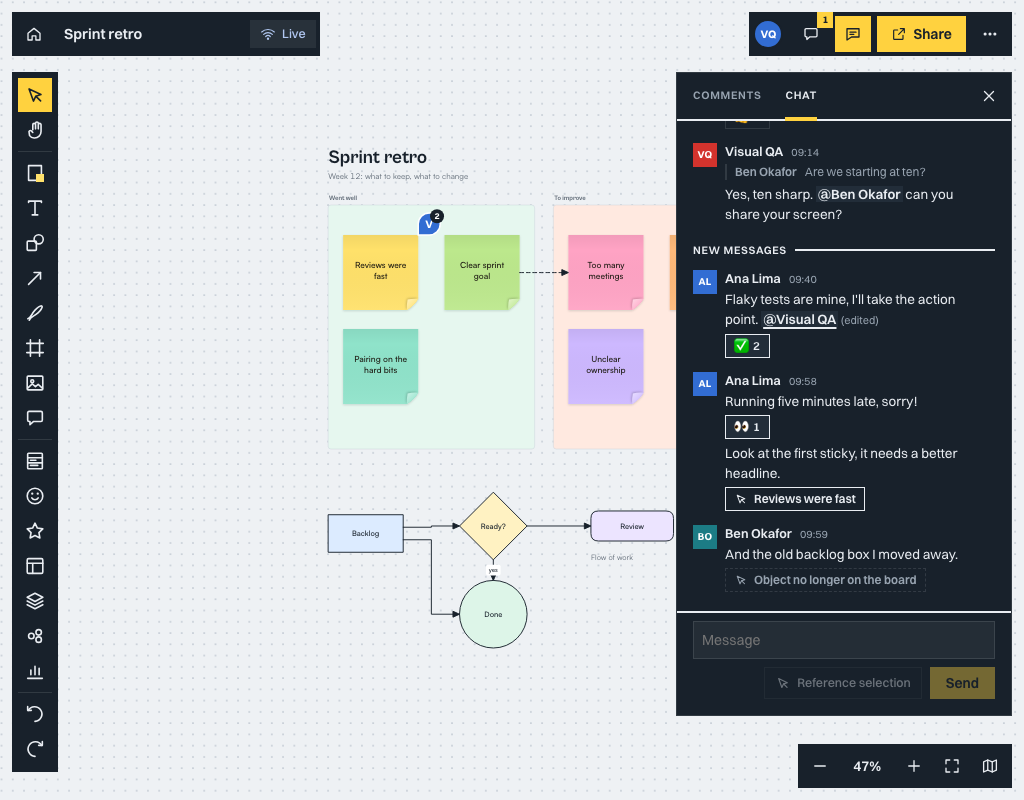
M. - The right-hand panel has two tabs, Comments and Chat. Switching between them does not change either.
- A badge on the button counts messages you have not read. It has a red outline when someone mentioned you.
- The board remembers whether you left the chat open, for you only.
Read
Messages are a live list, oldest at the top.
- Scroll up to load earlier messages. Your place stays put when older or newer messages arrive.
- Jump to latest takes you to the end when you have scrolled away.
- Several messages from one person within five minutes are grouped. Date lines separate days.
- A New messages line shows where you stopped reading. It moves when the newest message is on screen.
- edited marks a message its author changed. A removed message shows Message deleted, or Message removed by a moderator, so replies still make sense.
- A reply shows a one-line quote of the message it answers.
- Web links (
httpandhttps) open in a new tab. Messages are always shown as plain text.
Write
- Click the box at the bottom of the panel and type.
- Press
Enterto send.Shift+Enterstarts a new line.Escleaves the box.
The box grows to six lines. A message can be up to 2,000 characters.
Mention someone
Type @ to see the people who can read this channel, and choose one. They are marked in your message and get a badge on their Chat button. You can mention up to 10 people in one message.
How they hear about it depends on where they are:
- If they have Tabula open but are not looking at that channel, a card says who mentioned them, where, and the first words, with Open and Dismiss. It goes away on its own after 20 seconds.
- If they have Tabula open on that channel, they simply see your message.
- If they have Tabula closed, they get an email after 10 minutes, as long as nobody has opened Tabula or read the message since. See Notifications.
Point at something on the board
In board chat, select one object on the board, then choose Reference selection next to the message box. A line above the box shows what you are pointing at, with a button to take it off. Send the message and it carries a chip with the object's words.
Select a chip to fly to the object and select it. The chip follows the board, so it shows the object's current words. If the object has been deleted, the chip says so and goes nowhere. On the Chat page, a chip opens that board at the object.
Reference selection is off unless exactly one object is selected. Notes that private writing hides from you, and objects hidden in the Layers panel, show no words and you cannot fly to them. Other kinds of channel have no chips.
Reply, copy, edit and delete
Each message has a menu:
- Reply quotes the message in your next one.
- Copy text.
- Edit, for your own messages. The message then shows edited.
- Delete, for your own messages. The board's owner can also delete other people's.
React
Select the actions button on a message (the three dots) and choose React, then one of six: 👍 ❤️ 😄 🎉 👀 ✅. The reaction shows as a small count under the message. Select a count to add or remove your own reaction. You can use each reaction once per message. Reactions never send a notice to anyone. You cannot react to a deleted message.
Who can write
Everyone who can open the board can read the chat. Owners, editors and commenters can write. People who can only view the board can write only if a workspace admin has allowed it. The box is switched off, with the reason shown, when you cannot write: view-only access, a workspace that is read-only, or access to the board that you have lost.
Notifications
Under Chat notifications in the board menu (or Notifications at the bottom of the channel list on the Chat page) you can choose whether to get an email when you are mentioned. It is on until you turn it off.
The email says who mentioned you, in which board, team or workspace, and the first words of the message, with a link. It is sent only if you have not had Tabula open for 10 minutes, and not for a message you have read, or that was deleted or edited so it no longer mentions you. You get at most one email per conversation every 10 minutes and 20 a day, and editing a message never sends it again.
Offline
Chat keeps the last 50 messages of each board you opened on this device. Without a connection it shows them with Offline, showing saved messages.
Messages you send while offline wait in a queue, grey, with Sending…. They go out in order when the connection comes back. If one cannot be sent, it shows Not sent with Retry, Copy and Discard. If the server refuses it, it says why. Editing and deleting need a connection. Signing out removes the saved messages from the device.
When someone leaves
Removing a member keeps their chat messages, shown under the name they were written under but with no account behind them. Their reactions, read markers and the mentions of them are dropped.
Admins can also handle a request for a copy of someone's chat data, or to be forgotten. In Admin > Members, each person has two actions:
- Export chat downloads a JSON file with everything they wrote and the reactions they gave. Deleted messages have no text.
- Erase chat messages turns every message they wrote, in every channel, into a deleted message by "Former member". It asks for a second click, and people watching the channel see the change at once.
Both are recorded in the audit log, with the person and a count but never the text. Filter by Chat to find them. Backups keep erased messages until the backups expire. This is not a full export of someone's personal data.
Unread count in the tab title
While the tab is in the background, the page title starts with the number of unread chat messages, for example (3) Roadmap - Tabula.
Things to know
- Chat is not part of version history, and it is not in exports or board files. A board you export and open elsewhere comes without its conversation.
- Chat is separate from comments, and neither shows in the other.
- Mentions in a message you edit later notify the newly mentioned people, not the ones who were mentioned before.
- Messages are deleted after a time set by an admin: one year unless they choose otherwise.