Layers
The Layers panel lists everything on the board in one place, top of the stack first. Use it to find an object, change what sits above what, rename things, and hide or lock objects.
Open it
- Select Layers in the tool rail or in the board menu.
- Press
Alt+L.
The panel's title shows how many objects are hidden. If you can only view the board, the list is read only.
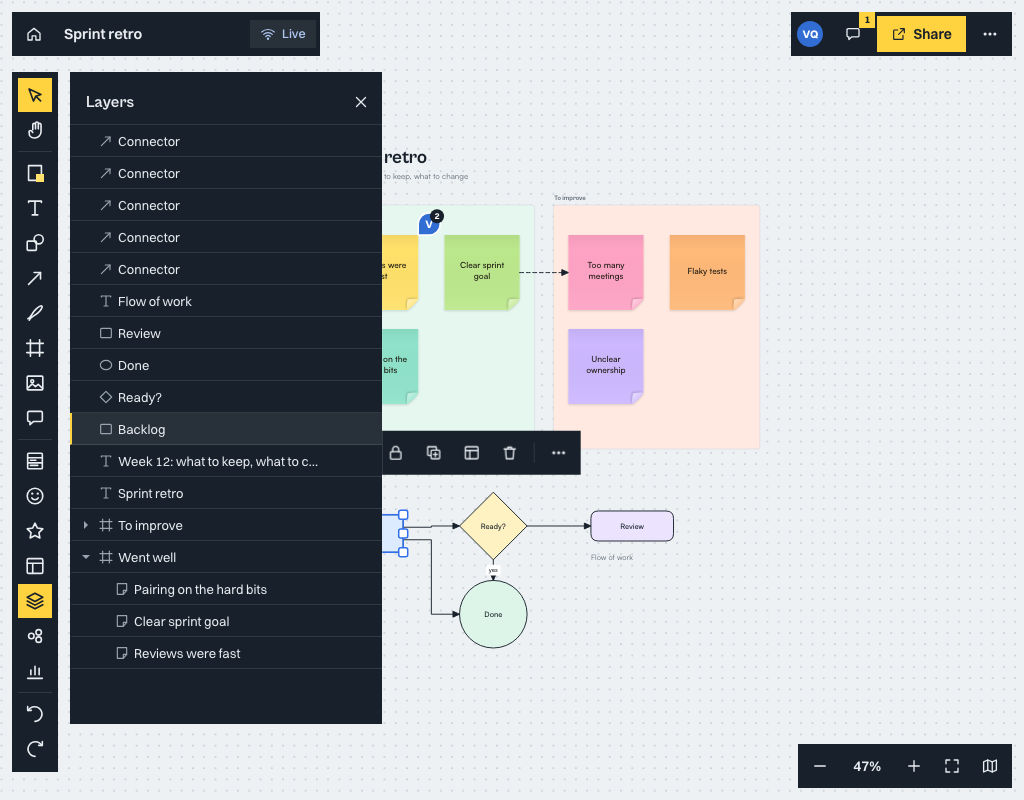
The list
- The topmost object is first. Items inside a frame are listed under it, and so are the lanes and cards of a kanban board.
- Click a row to select that object on the board.
- Rows show the object's name, or its text or type when it has no name.
Change the stacking order
Drag a row up or down. Or select a row and press Alt+Up or Alt+Down. Each move is one step in Undo. On a phone, drag the handle at the end of the row.
For the stacking commands that work on the board itself, see Shapes, text and sticky notes.
Rename
Double-click a row, or select it and press F2. Press Enter to save and Esc to cancel. A frame's name is also its title on the board.
Hide and lock
Each row has an eye and a lock.
- Hide removes an object from the board for everyone. A hidden object is not drawn, cannot be clicked, selected, snapped to or connected to, and is left out of PNG and SVG exports, the minimap and the session summary. Connectors to it, and everything inside a hidden frame, go with it. The row stays in the list so you can show it again. In a kanban board, a hidden lane or card leaves the layout and the lane closes up.
- Lock stops an object from being edited. See Locking.
With a row selected, press H to hide or show it and L to lock or unlock it.
Hidden is not private. Anyone who can open the board can show a hidden object again from the Layers panel, and board files keep hidden objects. Hidden objects are left out when you save a template.
Keyboard
The list is a tree you can use without a mouse.
| Key | Does |
|---|---|
Up, Down |
Move through the rows |
Enter |
Select the object on the board |
Alt+Up, Alt+Down |
Move the object up or down the stack |
F2 |
Rename |
H |
Hide or show |
L |
Lock or unlock |
A hidden object cannot be selected until you show it, and a locked object cannot be selected until you unlock it. The panel says so when you try.