Kanban boards
A kanban board is a set of columns, called lanes, with cards in them. You drag a card from one lane to another as the work moves along. It sits on the canvas like any other object.
Kanban is in preview
Making a kanban is switched off for now. To try it, add ?kanban to the board's address, for example https://your-tabula/board/abc?kanban. Tabula remembers it on that browser. Without it you do not see the Kanban tool or Make kanban, and a sticky can only become a card inside a kanban that is already on the board. Kanbans already on a board always show and can be edited.
Without the switch, pasting, importing or using a template leaves out kanbans and cards that are not copies of ones already on the board.
Add a kanban
- Open the Shapes panel and select Kanban under Boards. You can also type "kanban" in Search shapes.
- Click on the board to place it, or drag to set its size.
You get three lanes, To do, Doing and Done, and the first lane opens + Add card so you can type the first card at once.
If you can only view a board, you cannot add one.
Add cards
- Select + Add card at the bottom of a lane, or double-click empty space in a lane.
- Type a title.
Enteradds the card and starts the next one.Escstops.
A card shows its title (up to three lines) and, once they are set, label chips, a due date, a comment count and its owner. Deleting a card works like deleting any other object.
Open a card
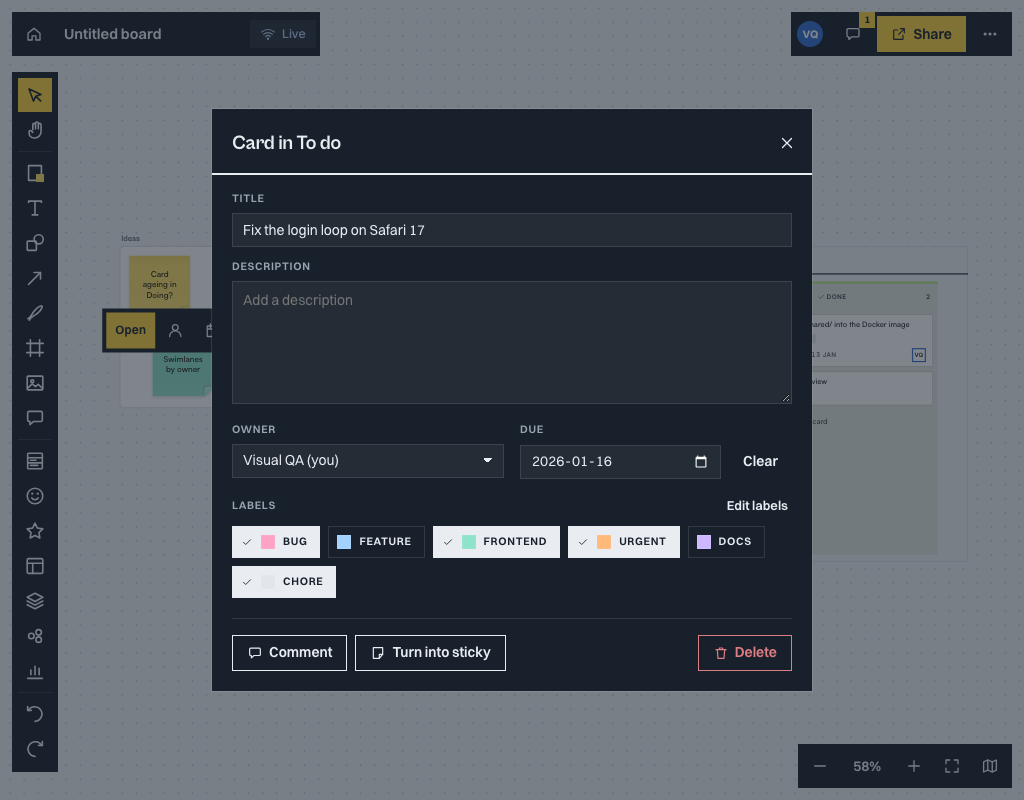
Double-click a card, select it and press Enter, or choose Open in the quick-action bar. The card dialog has:
- Title and Description.
- Owner: you, the people on the board now, anyone already named on it, or a name you type.
- Due date, with the date picker of your browser.
- Labels, picked from the board's labels.
- Comment, Turn into sticky and Delete.
Each field saves when you leave it, and each is one step in Undo. On a phone the dialog is a sheet at the bottom. Commenters see the card read-only and can still comment. Viewers cannot open it.
Labels
Choose Labels in the card dialog, or in the quick-action bar or properties panel of a kanban, to manage the board's labels. You can create, rename, reorder and delete labels, and give each one of eight named colours. Only editors can change labels. A label on a card shows as a chip, with a check mark in the picker.
Turn stickies into cards
- Select stickies or cards and press
K, or choose Turn into card or Turn into sticky. It is the same object, so its comments, connectors, votes and history stay. The first line becomes the title and the rest the description. - A sticky over a lane joins that lane. A card turned into a sticky stays where it was drawn.
- Drag a sticky onto a lane to make it a card there. A line shows where it will land.
- Make kanban from selection (with the preview switch on) puts the selected stickies into the first lane of a new kanban, in reading order.
- Someone else's note is never converted while private writing is running.
Move cards
- Drag a card to another place in its lane, to another lane, or into an empty lane (it says Drop here). A line shows where it will land. Nothing changes until you let go, and the whole move is one step in Undo.
- With the keyboard, select a card and press
Altwith an arrow key: up or down moves it within its lane, left or right moves it to the next lane. A ring and the word "Moving" show it, and a screen reader hears where it went, for example "Moved to Doing, position 2 of 5". - Drop a card away from the kanban and it becomes a loose card on the board.
- Viewers and commenters can look but cannot drag cards.
Lanes
Each lane shows how many cards it holds. Click a card, a lane or the container to select it.
Editors have a ⋯ button on each lane. It offers:
- Rename.
- Colour, one of eight named colours.
- Stage: to do, doing or done. Cards in a done lane are not shown as overdue.
- WIP limit: set or clear the most cards the lane should hold, and choose warn or block (see below).
- Move left and Move right.
- Delete lane moves its cards to the lane on its left, or on its right for the first lane. Delete lane and its cards deletes both.
To reorder lanes by hand, press and hold a lane by its header and drop it in the gap where it should go. A line shows the drop place while you move. This works with a mouse or a pen; on a touch screen use Move left and Move right, or the list. A lane hidden in the Layers panel is not moved.
To add a lane, select the + to the right of the last lane. It opens with its name ready to type. Each of these is one step in Undo. A locked lane or kanban says so instead of changing.
Limits on work in progress
A lane with a limit shows for example 3 / 3, with a red mark when it is full. In warn mode that is all that happens. In block mode a full lane also refuses more cards: a dropped card or sticky, a move with Alt and the arrow keys, and a new card. A message says why, for example "Review is full: 3 of 3". While you drag over a full lane it gets a dashed outline and "Full", and + Add card in it is switched off. Moving a card within a full lane, or out of it, is always allowed. Limits are checked in your browser only.
The whole kanban
The ⋯ in the kanban's header (editors) offers Rename, Add lane, Labels, Lock or Unlock, and Delete kanban. It also has Open as list and Export cards (CSV).
Filter the cards
Select Filter in the kanban's header, or in the quick-action bar, to show only the cards you care about. You can combine:
- Mine: cards you own.
- Labels: cards with any of the labels you pick.
- Due: overdue, today, this week or no date.
- Text: words in the title or description.
The popover says how many cards match, for example "2 of 9 match", and has Clear. Active filters also show as chips in the header, each with a button to remove it.
Cards that do not match are dimmed, not hidden, and a drag selection skips them. Comment pins stay at full strength. A filter is yours alone: it is kept in this browser, not in the board, so other people do not see it and exports ignore it. Viewers and commenters can filter too.
When you zoom far out, card titles become bars and lane headers keep only their names.
Open as a list
Open as list shows a kanban as lane tabs with one row per card. Find it in the kanban's ⋯ menu, in the quick-action bar, by pressing Enter on a selected kanban, or, at phone width, by double-tapping a kanban. On a phone the list fills the screen. On a wide screen it is a panel at the side.
Each row has:
- A grip to drag the card up or down within its lane.
- Move to…, which lists the lanes with their card counts, then top or bottom. A full lane with a blocking limit is greyed out and says why.
- Open (the card dialog) and Turn into sticky.
Alt with the arrow keys moves a card as on the board, and a screen reader hears where it went. The Add card bar at the bottom adds a card to the lane you are looking at, unless it is full and blocking. Viewers can read and filter the list. Commenters can open cards but not change them.
On a touch screen, a card on the board lifts after you press and hold it for about half a second, so you can drag it without scrolling the board.
Kanban templates
While the preview switch is on, the templates drawer offers four kanban templates: Kanban, Sprint board, Bug triage and Personal tasks. Their labels are added to the board's labels by name, so labels you already have are reused. Owners, due dates and links to trackers are never part of a template.
When you save a selection that holds a kanban as your own template, or copy and paste a kanban, its lanes and cards come along. Saving strips owners, due dates and tracker links.
Export cards as CSV
Choose Cards as CSV in the board menu, Export cards (CSV) in a kanban's ⋯ menu, or Export cards (CSV) in the quick-action bar. You get one row per card, for all kanbans on the board or just the selected ones. The columns are the kanban, lane, stage, position, title, description, owner, due date, labels, comment count, who created it, when it was last updated and its id. The file opens correctly in Excel. Any cell that starts with =, +, - or @ gets an apostrophe in front, so a spreadsheet shows it as text and never runs it. Kanbans hidden in the Layers panel are left out.
Older versions
A board that contains a kanban opens read only in a Tabula version that does not know kanban boards yet, with a banner that says so. Reload the page to get the current version.
In the Markdown summary
The board's Markdown summary lists each kanban as a heading, each lane under it as a smaller heading with its stage and limit (for example "doing, 3 of 3, blocks"), and its cards as bullets in the order drawn, with the owner and due date in parentheses and any votes. Kanbans, lanes and cards hidden in the Layers panel are left out.