Shapes, text and sticky notes
The tool rail on the left of a board holds everything you draw with. This page covers shapes, sticky notes, text, drawings, frames, icons, the quick-action bar, locking and the layers list.
The tool rail
Each tool has a one-letter shortcut. Hover over a button, or move keyboard focus onto it, to see its name and shortcut.
| Key | Tool |
|---|---|
V |
Select |
H |
Hand (pan). Holding Space and dragging also pans. |
N or S |
Sticky note |
T |
Text |
R |
Rectangle |
O |
Ellipse |
D |
Diamond |
L or X |
Connector (see Connectors) |
P |
Pen |
F |
Frame |
C |
Comment (see Comments) |
Shortcuts do not work while you are typing in a text box. Esc clears your selection and returns to Select.
Below the drawing tools, the rail has drawers for UML, Icons, Stickers and Templates and team exercises, plus buttons to start a dot vote or a quick poll, and Undo and Redo.
If you can only view a board, only Select and Hand are available.
Sticky notes
- Press
N, or click Sticky note. - Pick a colour in the Note colour tray that appears beside the rail.
- Click the board to place a note, or drag to set its size.
- Type. Press
Escor click away to finish.
To change a note's colour later, select it and use the Colour swatch in the quick-action bar. Choose any colour at the end of the swatches opens a colour picker.
Shapes
Click Shapes on the rail to open the Shapes panel. Shapes are grouped as Basic, Arrows, Callouts and Flowchart.
- Type in Search shapes to filter by name.
- Click a shape, then click the board to place it at its default size, or drag to size it. The shape tool then switches back to Select and you can type into the new shape straight away.
- Or drag a shape from the panel onto the board.
R, O and D skip the panel and draw a rectangle, ellipse or diamond.
Under Boards the panel also has Kanban, which places a board of lanes and cards. See Kanban boards.
To change the shape of an existing object, select it and use the Shape button in the quick-action bar.
Text
Press T and click or drag on the board to add a text box. You can also double-click empty canvas with Select active to create one.
To edit text in a shape, sticky note, connector or frame title, double-click it, or select it and press Enter. While editing:
EscorCtrl+Enter(Cmd+Enteron Mac) finishes.Tabfinishes.- In shapes, notes and text boxes,
Enterstarts a new line. In frame names and connector labels,Enterfinishes.
Alignment
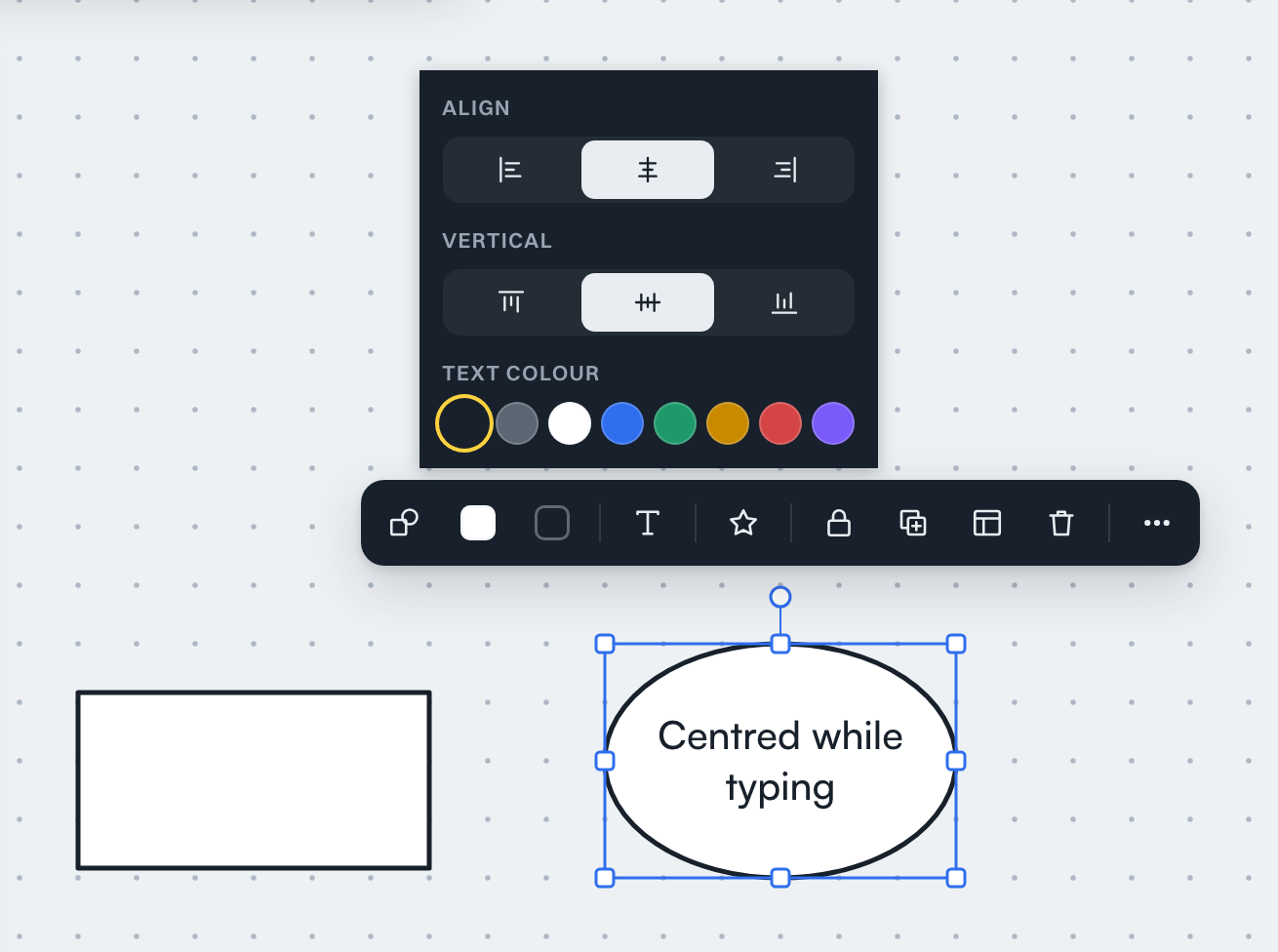
In the quick-action bar, Text sets horizontal alignment (left, centre, right) and text colour. For shapes and sticky notes it also sets Vertical alignment: top, middle or bottom.
Fonts
Open the properties panel (see below) and use Font. The font list has a search field (Search Fontshare fonts), category filters and a section for fonts already used on the board. Pointing at a font previews it on your selection. Click to keep it, or press Esc to put the old one back. You can also set Size and Weight there. Size changes by 1 with the arrow keys or mouse wheel, and by 10 with Shift.
Board-wide heading and body fonts for new objects are set in Board settings in the board menu.
Drawing, frames and icons
- Pen (
P): drag to draw freehand. A tray shows colours and three widths while the pen is active. - Frame (
F): drag to draw a titled area. Objects fully inside a new frame become its children and move with it. Double-click a frame to rename it. - Icons: open the Icons drawer and type in Search icons. Search covers all icon sets, or the one you choose in the set list (All icon sets by default), and matches names, aliases and categories. Click an icon to add it or drag it onto the board. Each click places the icon 24 pixels right and down from the previous click's icon, so they do not land on top of each other, and the steps start again at the centre of the view after you move the view a step away or move or delete the last icon placed. Change its colour with the properties panel.
- Offline icons: with All icon sets selected, the row Popular icon sets (N) has Download for offline. With one set selected, the row shows that set's name instead. Downloaded sets search and preview without a connection; Update and Remove work as they do for stickers (see Stickers). Icons already on the board stay there.
- Online sets: this button in the Icons drawer loads more sets from Iconify. Those sets cannot be downloaded, need a connection, and each search sends your query to Iconify.
- UML: the UML drawer holds classes, actors, lifelines and other UML elements, and the relationship connectors. See Connectors.
- Import Mermaid: see Export and import.
For emoji, see Stickers.
The quick-action bar
Select something and a small bar appears above it (below, if above would cover a connector). It shows only the controls that apply.
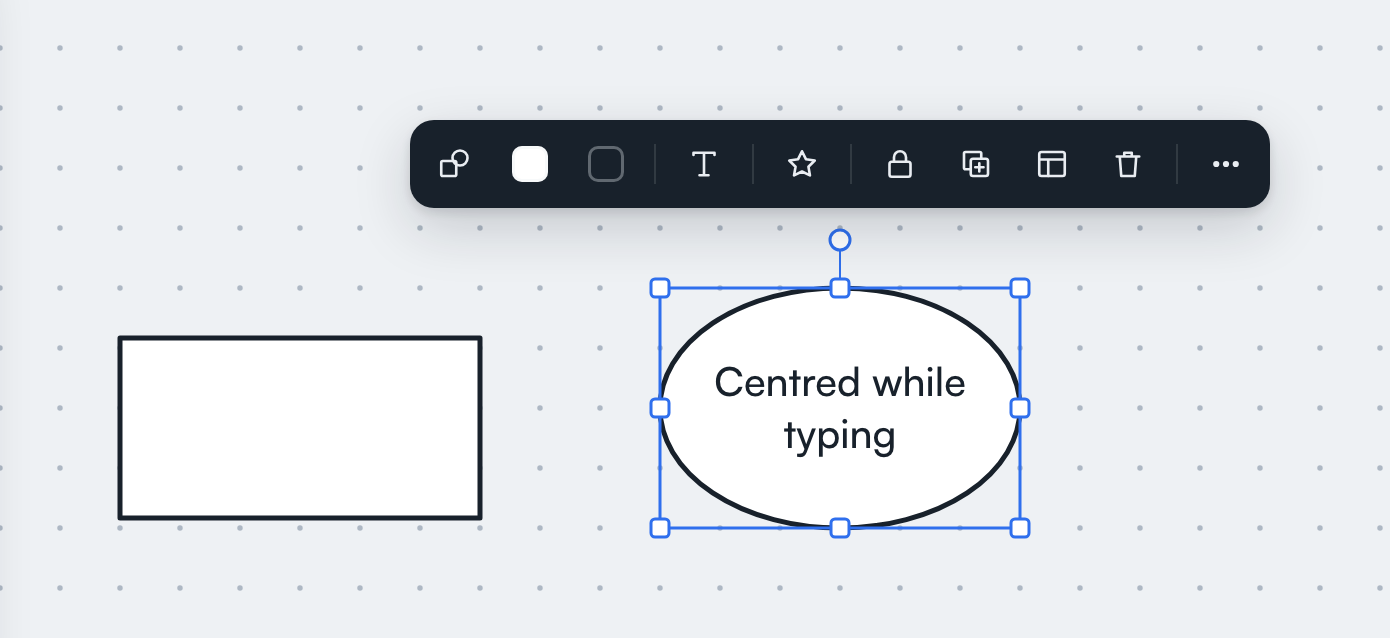
- Colour: sticky note colour.
- Shape: change the shape kind.
- Fill and Line: fill and outline colours.
- Route: for connectors, Straight, Elbow or Curved.
- Text: alignment and text colour.
- Align: with two or more objects selected, align edges and centres. With three or more, you can also distribute horizontally or vertically.
- React with a sticker: see Stickers.
- Lock / Unlock.
- Duplicate (
Ctrl+D,Cmd+Don Mac). - Delete (
Del). - More properties: opens the properties panel.
In a narrow window (860 pixels wide or less) the bar starts to the right of the toolbar instead of covering it, and scrolls sideways if it is wider than the room.
The properties panel
More properties opens a panel on the side titled with the object type. Depending on the selection it offers: shape or class kind, fill, line colour, Width (1 to 6 px), Style (solid, dashed, dotted), font, size, weight, alignment, text colour, Opacity, align and distribute, bring to front (]), bring forward (Ctrl+]), send backward (Ctrl+[), send to back ([) (with several items selected they keep their order among themselves), duplicate, lock, Copy as Mermaid, and delete. If several objects are selected and differ, a field shows as mixed until you set it. On a phone the panel has a fold button that folds it down to its title row, so you can see the board above it.
Selecting, moving and grouping
- Click to select.
Shift+click adds or removes an item. Drag on empty canvas to select with a box. Ctrl+Aselects everything that is not locked.- Drag to move. Arrow keys nudge by 1; with
Shift, by one grid step. - Hold
Altwhile dragging to ignore the grid and smart guides. - Alignment lines and equal-spacing brackets appear while you move or resize; see Smart guides.
Shiftwhile resizing keeps proportions.- Right-click an item (or a selection) for a menu with Bring to front, Bring forward, Send backward, Send to back, Duplicate, Lock or Unlock, and Delete. Bring forward and Send backward move the selection one step: past the nearest item it overlaps, not to the very top or bottom.
- Copy and paste with
Ctrl+CandCtrl+V. Pasting plain text creates one sticky note per line (up to 50).
There is no separate group command. To keep objects together, put them in a Frame: moving the frame moves what is inside it.
Locking
Lock an item to stop it getting in the way.
- Select it and click Lock in the quick-action bar.
- The selection clears. A message says "Locked. Long-press to unlock."
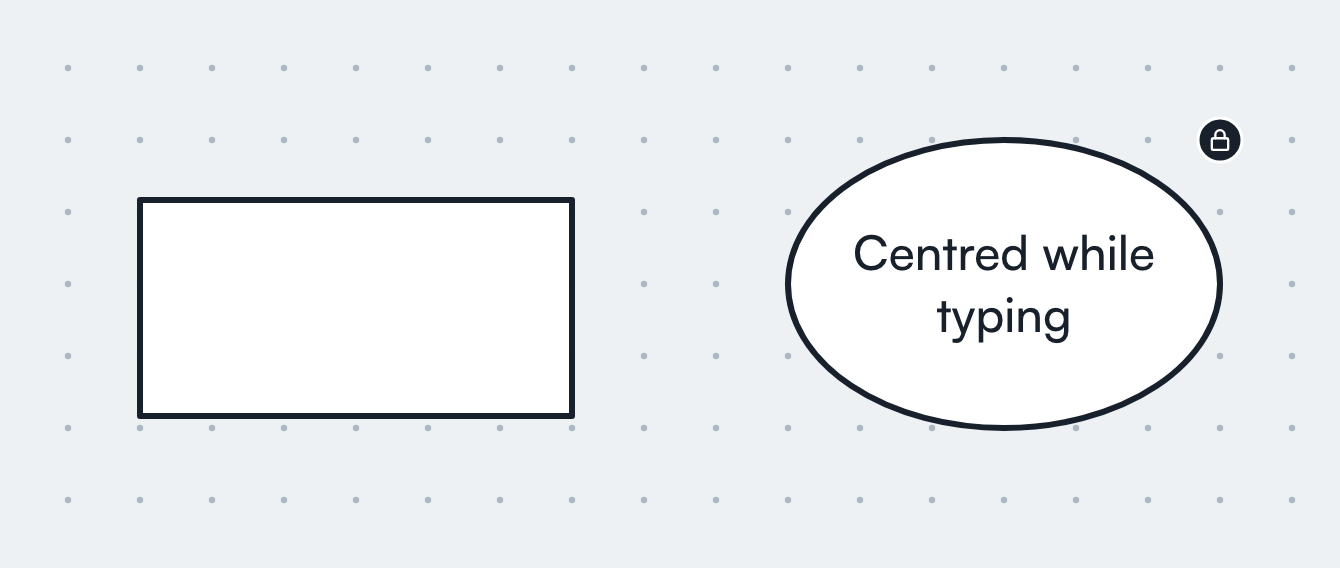
Locked items behave as background: clicks and box selection pass over them, Select All skips them, and you cannot edit them or attach connectors to them. Hovering one shows a small lock badge.
To unlock, press and hold on the item for 0.6 seconds. A ring fills, then the item unlocks and is selected. Dot voting still works on locked notes.
Layers
Layers in the tool rail (or Alt+L, or Layers in the board menu) lists everything on the board, the item on top first. Frames come last, because they always sit behind everything else, and the items inside a frame are listed under it: click the triangle to fold a frame.
- Click an item to select it on the board; hold
Shift,CtrlorCmdto add or remove items. - Drag an item up or down to put it above or below another one beside it. On a phone, drag it by the handle on the right. With the keyboard,
Alt+UpandAlt+Downmove the focused item one place. - Double-click a name, or press
F2, to rename an item. The name only shows in this list, except for a frame, where it is the frame's title. An item without a name is listed by its first words, or by what it is. - The eye hides an item, and the lock locks it (
HandLon the focused item).
A hidden item is hidden for everyone on the board, not just for you: it is not drawn, cannot be clicked or selected, and is left out of PNG and SVG exports and of the session summary. Connectors to a hidden item and everything inside a hidden frame are hidden with it. Hiding is not private: the item is still part of the board, anyone who can edit can show it again from the list, and it is still in board files (.drift) and JSON exports. The panel's title says how many items are hidden. Viewers and commenters see the list, but cannot change anything in it.
Dot voting
The Start a dot vote (no limit) button on the rail starts a vote. Click a note to add your dot; Shift+click removes one. A bar at the bottom lets you set dots per person. Details are in Sessions.