Templates
Templates are ready-made boards for team exercises such as retrospectives, brainstorming and prioritisation. Tabula includes built-in templates, and you can save your own from any board. In a workspace with sign-in, you can also share your templates with a team or with the whole workspace.
Browse templates
Choose Templates in the top bar of the Boards page, or open the #/templates address of your Tabula server.
- My templates comes first and lists the templates you saved. Until you save one it says Templates you save from a board appear here.
- Shared with me appears in a workspace with sign-in. It lists the team and workspace templates that someone else saved. Your own templates stay under My templates.
- Built-in templates follows. Every card has a thumbnail, its category, name, a one-line description and a Use template button. Thumbnails are drawn from the template's contents in your current theme.
- Each of your own cards and each shared card has a small label above its name. It says Only me, the name of the team, or Workspace. On a shared card the owner's name follows it, after a dot.
- The category buttons filter all the lists: All, Retrospective, Ideation, Discussion, Prioritisation, Planning, Discovery, Strategy, Risk and Custom. Custom appears once a template in that category is listed.
- Search templates matches name, category and description. The line above the cards shows how many match, or No templates match.
<!-- screenshot: the Templates page with a My templates section above the built-in cards, thumbnails visible -->
Open mode and workspaces with sign-in
Tabula works in two ways, depending on how your workspace is set up.
- Open mode (no sign-in). Your templates are stored in this browser, on this device. They work offline and appear in all tabs of the same browser. They are not shared with anyone, they do not follow you to another browser, and clearing site data deletes them. To move one, export it as a file (see Export and import).
- A workspace with sign-in. Your templates are saved on the server, so they follow you to any browser where you sign in. You can share them with a team or the whole workspace. The list and the templates you have opened are kept on this device for offline use, and the copies are removed when you sign out. You cannot save, change or delete a template while you are offline.
If you saved templates in this browser before you signed in, Tabula offers to upload them once. See Upload templates saved in this browser.
Start a board from a template
- Open the Templates page.
- Choose Use template on a card.
Tabula creates a new board named after the template, with its frames, fonts and session steps, and opens it. Rename the board from the name field at the top left.
The Start from a template row on the Boards page shows up to four tiles: your templates first, then built-in ones. Click a tile to open a new board from it, or choose All templates.
If your workspace uses sign-in and you are offline, starting a board from a template needs the server. The buttons are disabled and a note says why.
Add a template to the board you are on
- Open the board and choose Templates and team exercises in the left toolbar. On an empty board, Start from a template opens the same drawer.
- Pick a template. Your own are listed under My templates, the built-in ones under their categories.
The frames are placed next to your existing content and the view moves to show them. Undo (Ctrl+Z, Cmd+Z on Mac) removes the added objects in one step. If the template has session steps, they replace the board's current steps, and a message tells you to start the session from the bar at the bottom. See Sessions and focus requests. You need edit access.
Save a board or a selection as a template
- To save part of a board, select the items. To save everything, select nothing.
- For a selection, choose Save as template in the quick-action bar. For the whole board, choose Menu, then Save board as template.
- Fill in the form: Name (up to 80 characters; prefilled from the frame name or the board name), Category and Description (optional).
- Tick Include session steps to keep the board's session plan. The checkbox only appears when the board has steps.
- In a workspace with sign-in, choose who the template is shared with (see Share a template).
- Check the preview, which shows the thumbnail and how many objects and steps will be saved, then choose Save template.
Frames bring everything inside them, and connectors are kept when both of their ends are saved. A template that is too large cannot be saved, and the form says why. An empty board shows Add something to the board first.
Category is a list, not free text. It offers the eight built-in categories and Custom. Those are the only categories a template can have.
Guests can use templates but cannot save them. If you are a guest, the form says Guests cannot save templates. and Save template stays off.
Share a template
In a workspace with sign-in, the Save form has a Share with list. The Edit details form has the same list.
- Only me is the default. Only you can see the template.
- The name of each team you belong to. Everyone in that team can use the template, and team admins can change it.
- Everyone in the workspace. Only workspace owners and admins see this option. Everyone in the workspace can use the template, and only owners and admins can change it.
A line under the list says what your choice means. To change who a template is shared with, choose Edit on the card, open Details, change Share with, choose Done and then Save template. Only the people who may change a template can move it. For example, a team admin can share a template with their team, but cannot take another person's template out of a team.
When a person leaves a team, they no longer see its templates. The templates stay with the team. If someone's account is removed, their personal templates show Owner removed and can only be changed by workspace owners and admins.
Edit a template
- On the Templates page, open the More actions menu (three dots) on a card in My templates and choose Edit. In a workspace with sign-in, Edit is there only for templates you may change.
- The template opens on a scratch board. It is a separate working board that is not synced, not shared and not listed on the Boards page. The banner reads Editing template and the template's name. Sharing, comments, version history and the sync status are not available here.
- Change the objects as on any board. Use Details to change the name, category, description, whether session steps are included and, in a workspace with sign-in, who it is shared with. Choose Done. The session bar edits the steps.
- Choose Save template to store your changes and return to the Templates page, or Cancel to leave without saving. The home button at the top left (Back to templates) does the same as Cancel.
If you leave with unsaved edits, whether with Cancel, the home button, a link or by changing the address, Discard changes? asks you to confirm. Choose Keep editing to stay or Discard changes to leave. Closing the tab shows the browser's own warning.
Rename, duplicate, export and delete
The More actions menu on a card in My templates offers:
- Edit, described above. In a workspace with sign-in, it appears only if you may change the template.
- Rename. Type a new name and choose Rename. Like Edit, it appears only if you may change the template.
- Duplicate. Adds a copy called "name (copy)" to My templates. In a workspace with sign-in, the copy is yours alone and is saved on the server. Anyone who can see a template can duplicate it, except guests.
- Export file. Downloads the template as a
.tabula-template.jsonfile. Sharing settings are not included. - Delete. Choose Delete template to confirm. Boards you made from it are not affected. In open mode the template is removed from this browser. In a workspace with sign-in it is deleted for everyone who could see it. Only the owner (while still in the team), the team's admins, and workspace owners and admins can delete a shared template.
The menu on a card in Shared with me offers only what you may do with it: Duplicate and Export file. Cards you cannot change have no Edit, Rename or Delete.
Duplicate a built-in template to edit it
Built-in templates cannot be changed. To adapt one, open the More actions menu on its card and choose Duplicate to edit. Tabula makes a personal copy in the same category and opens it for editing. After you choose Save template, the copy is under My templates. In a workspace with sign-in, the copy is saved on the server.
Upload templates saved in this browser
If you saved templates in this browser before you signed in to a workspace, Tabula offers to upload them. The offer appears once in each browser, the first time you sign in there.
The dialog is titled Upload your templates? and says how many templates you saved in this browser. It explains that they become personal templates that only you can see, and that the copies in this browser stay where they are. Choose Not now to keep them in this browser only. Choose Upload template (one template) or Upload N templates (where N is the number) to upload them. Nothing is uploaded unless you choose that button.
When the upload finishes, a message says how many templates were uploaded to your account. If one could not be uploaded, the message names it and says why, and the others are still uploaded. You can share the uploaded templates afterwards.
Export and import template files
Use a file to move a template to another browser or to give it to a colleague. Files do not carry sharing settings.
- Export: choose Export file on the template's card. The file is named after the template and ends in
.tabula-template.json. - Import: choose Import template at the top of the Templates page and pick the file. The template is added to My templates as a new template, so importing the same file twice gives two copies. An imported template is yours alone until you share it. A category Tabula does not know becomes Custom.
Files that are not valid templates, or that were made by a newer version of Tabula, are rejected with a message that says why. These files are for templates only. Boards use .drift and .json files. See Export and import.
Built-in templates
| Category | Templates |
|---|---|
| Retrospective | Start / Stop / Continue, 4Ls, Mad / Sad / Glad, Sailboat |
| Ideation | Crazy 8s, Brainstorm + affinity map |
| Discussion | Lean Coffee |
| Prioritisation | Impact / Effort matrix, MoSCoW |
| Planning | User story map, Design Sprint agenda |
| Discovery | Customer journey map, Empathy map, Service Blueprint |
| Strategy | SWOT, Business Model Canvas, Lean Canvas |
| Risk | Pre-mortem |
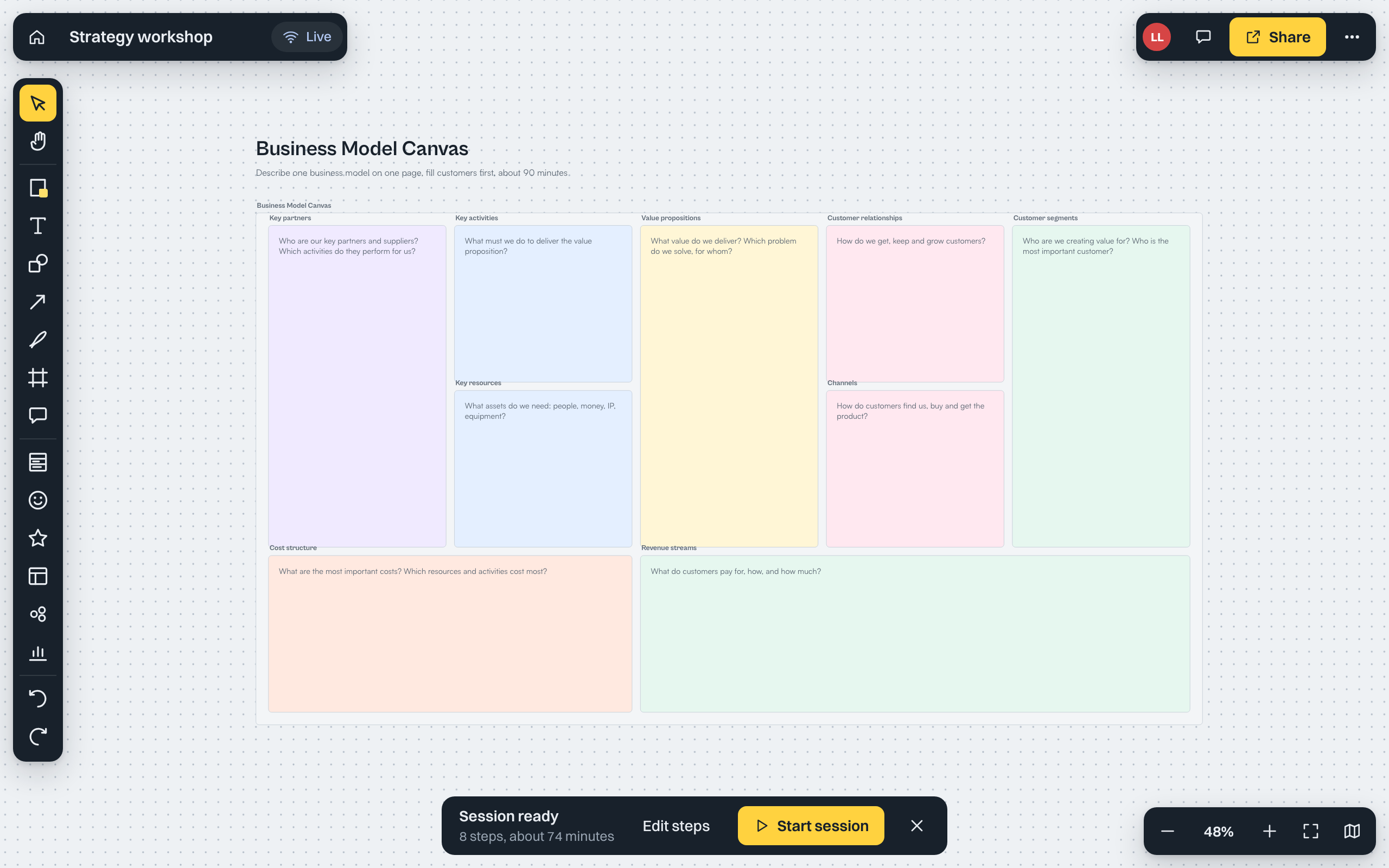
Four of these are laid out as one-page canvases or agendas:
- Business Model Canvas has the nine blocks (key partners, activities and resources, value propositions, customer relationships and channels, customer segments, cost structure and revenue streams), each with a question to answer.
- Lean Canvas has the nine blocks for a startup idea, from problem and solution to unfair advantage, with the problem written first.
- Service Blueprint has a column for each stage of a service and rows for physical evidence, customer actions, frontstage actions, backstage actions and support processes, with a line of visibility between frontstage and backstage.
- Design Sprint agenda has a goal frame and a column for each day, Monday to Friday. Its session plan walks through Monday's mapping.
Each built-in template comes with a session plan, shown in the session bar as Session ready. You can edit the steps or hide the bar before you start. Nothing runs until you start the session.