Sharing, roles and teams
Who can open a board depends on how your Tabula server is set up. In open mode, anyone with a board link can join. In a workspace with sign-in, people have accounts, and roles decide who can open, comment on or edit each board.
Open mode and workspaces
Open mode has no accounts. You share a board by sending its link. Anyone who opens the link while connected to the same server can edit the board with you in real time. Each browser keeps its own list of boards.
A workspace with sign-in is a shared space with members, teams and permissions. You sign in with your email address, and only people with access to a board can open its link. If you are not sure which one you are using, look at the board menu: if it has an Account section with your name, your workspace uses sign-in.
The Share dialog
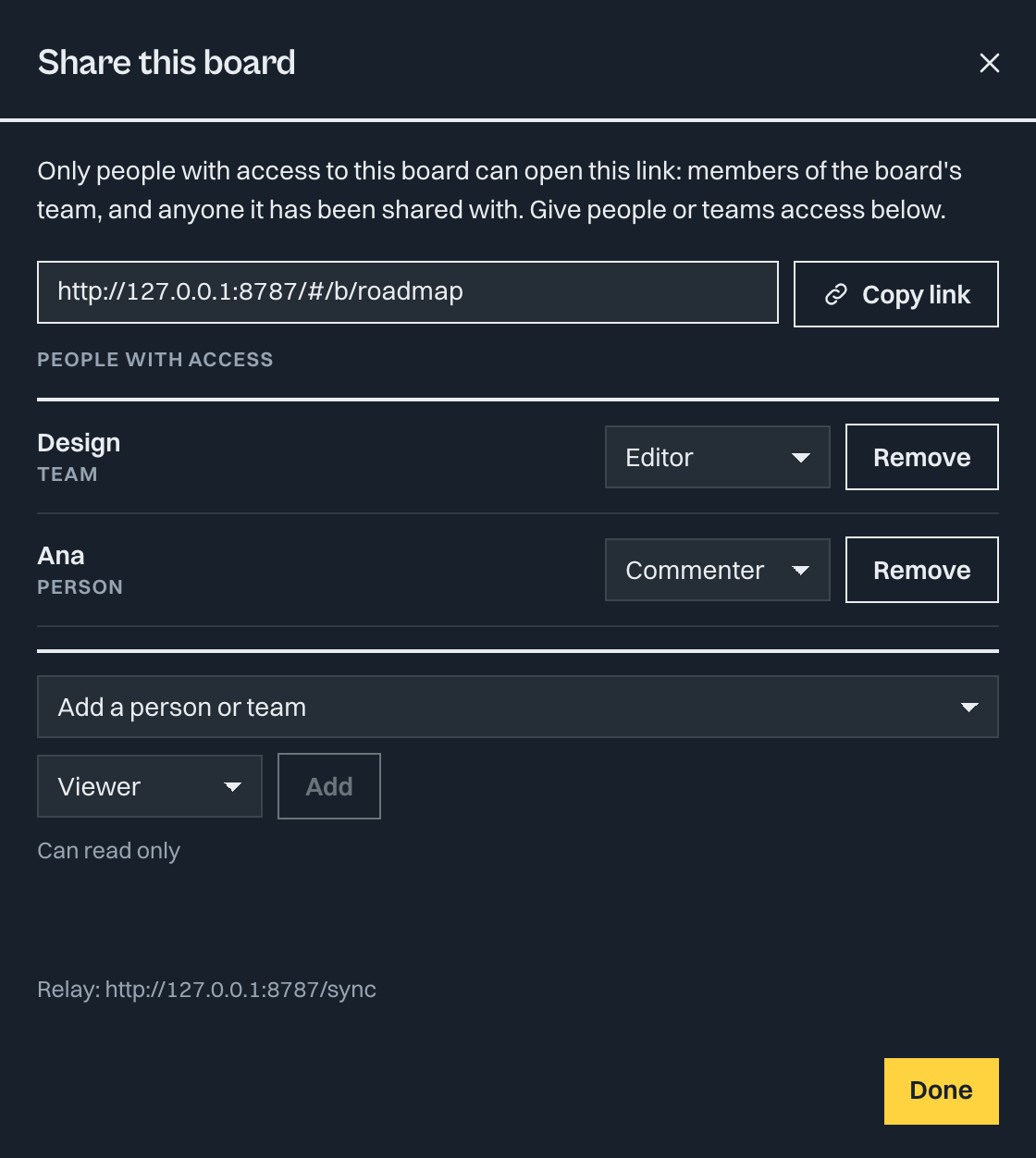
Select Share at the top right of a board (or the sync status next to the board name). The dialog Share this board shows the board link with a Copy link button.
- In open mode, the dialog says whether the board is syncing. If the server is not reachable, or sync is turned off, the board is only on your device until sync is back.
- With sign-in, the dialog tells you that only people with access can open the link. Send the link to people who already have access.
- If you own the board (workspace owners and admins count as owners of every board), the dialog also has a People with access list. See Give a person or team a role.
Give a person or team a role
- Open Share on the board.
- Under People with access, choose a person or team from Add a person or team. You can pick people from your teams (workspace owners and admins can pick anyone) and any of your teams.
- Choose Editor, Commenter or Viewer. The default is Viewer. A short line under the list says what each one can do.
- Select Add.
Each row has a role menu that saves when you change it, and a Remove button (select it twice to confirm). Changes reach people who already have the board open at once. Someone whose access is removed sees a banner and keeps their copy on their own device.
Adding a team gives every member of that team the role, unless they already have a higher one. To invite someone who is not in your workspace yet, send a team invite instead (see below).
Signing in
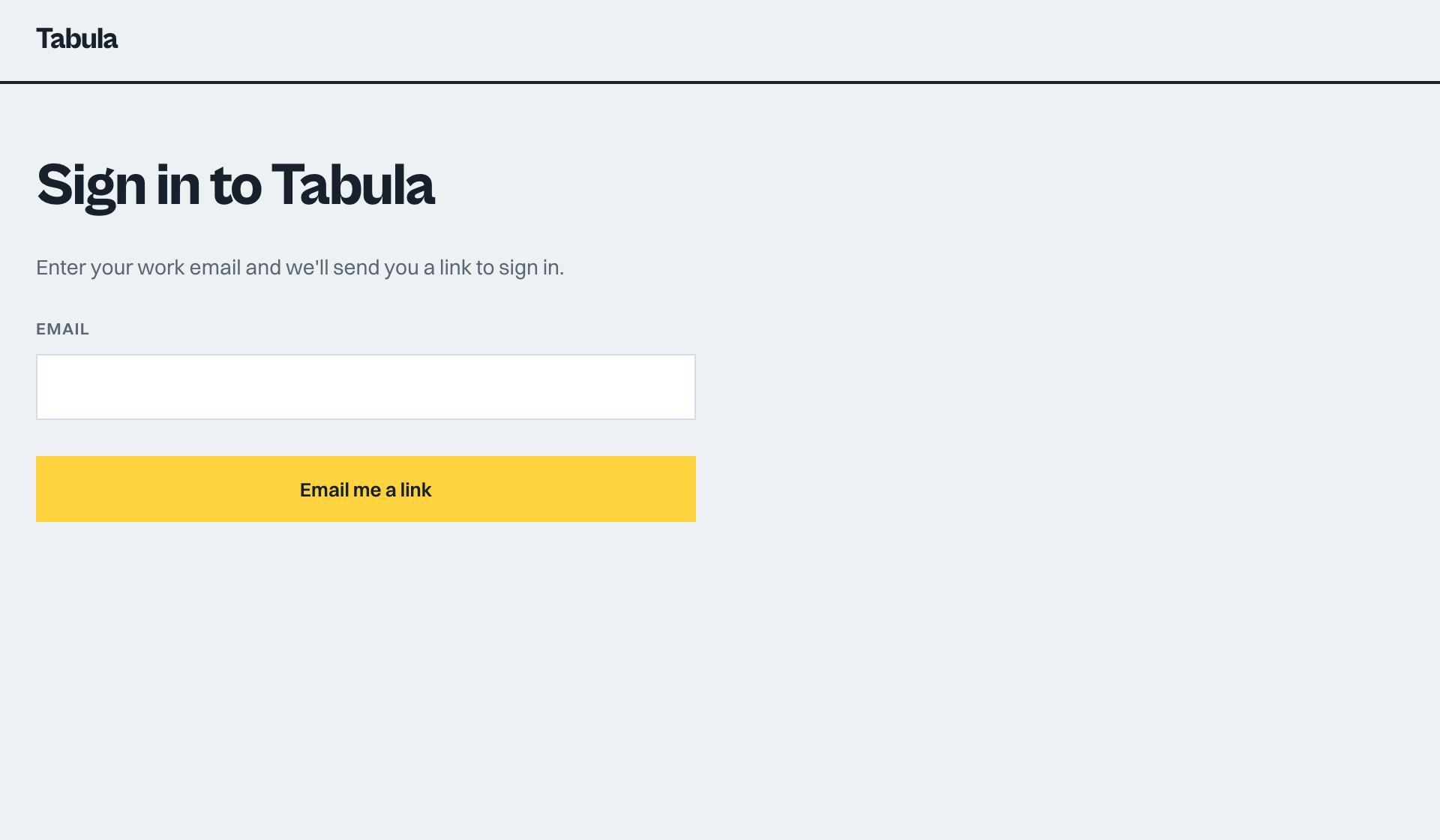
- Open your workspace address. The sign-in page asks for your email.
- Enter it and select Email me a link.
- Open the email and follow the link. It works once and expires after 15 minutes.
If the link has expired, request a new one. The first person to sign in with the owner address becomes the workspace owner. Everyone else needs an invite, or an account that an admin already created.
To sign out, open the board menu and choose Sign out under Account, or use Sign out in the top bar of the home screen. Sign out everywhere ends all your sessions on every device.
Under Your name and colour in the board menu you can change the name shown next to your cursor. With an account, the name is saved to your account. The colour is stored on this device.
Roles
There are three kinds of role.
Workspace roles
| Role | What it means |
|---|---|
| Owner | Runs the workspace. Has full access to every board and the admin dashboard. |
| Admin | Same as owner for boards and members, except that only an owner can change another owner. |
| Member | Can create boards and teams, and open boards they have access to. |
| Guest | Only sees boards shared with them. Cannot create teams. |
Owners and admins can open every board in the workspace. These boards appear under Other boards on their home screen.
Team roles
A team groups people and boards. Inside a team you are either a Member or an Admin.
- Team members can edit the team's boards.
- Team admins can also invite and remove people, rename the team and archive it.
Board roles
Each board has one role per person, and the highest one that applies wins.
| Role | Can do |
|---|---|
| Owner | Everything on the board, including deleting it. |
| Editor | Edit the board and comment. Can resolve any comment thread, but delete only their own comments. |
| Commenter | Read the board and add comments. Can resolve and delete only their own. Cannot change the board. |
| Viewer | Read only. Cursors still show. |
You are the owner of boards you create. Members of a team can edit its boards. Workspace owners and admins own every board.
On the home screen, the Access column marks boards where your access is limited: Can comment or View only. Boards you can edit have no badge. Next to the board name, commenters see a Can comment badge and viewers a View only badge. Drawing tools are disabled, and text editing does not start. Comments stay available to commenters.
Teams
With sign-in, the home screen groups boards into sections.
- One section per team you belong to.
- Personal: boards you own that belong to no team.
- Shared with you: other boards you can open (Other boards for workspace owners and admins).
- On this device: boards stored only in your browser. Select Add to workspace and choose Personal or a team to move one to the server.
Create a team
- On the home screen, select New team. Guests do not see this button.
- Enter a team name and select Create team. You become the team's admin.
To start a board inside a team, select New board in the team's section.
Manage a team
Select Manage in the team section. Team admins and workspace admins can:
- Rename the team (Save).
- Change a person's role with the role menu, or remove them with the trash icon.
- Create an invite link and revoke active links.
- Archive the team under Danger zone. Its boards stay available to the people who had access, but the team disappears from the home screen.
Any member can select Leave team. You lose access to the team's boards. Boards shared with you directly stay shared. The last admin cannot leave: make someone else an admin first.
Invite people
- In Manage, choose Member or Admin under Invite link.
- Pick Expires after: 1, 7, 14 or 30 days.
- Select Create invite link, then Copy.
Anyone with the link who confirms their email can join the team. The invite page shows the team name and a Join team button. If your workspace has a seat limit and all seats are used, the invite is refused until a seat is free.
Workspace members
Owners and admins select Members on the home screen to change workspace roles, Disable or Enable a person, or remove them. A removed member is signed out everywhere and loses access immediately. Their local copies stay on their devices. The admin dashboard has a fuller version of this list.
When your access changes
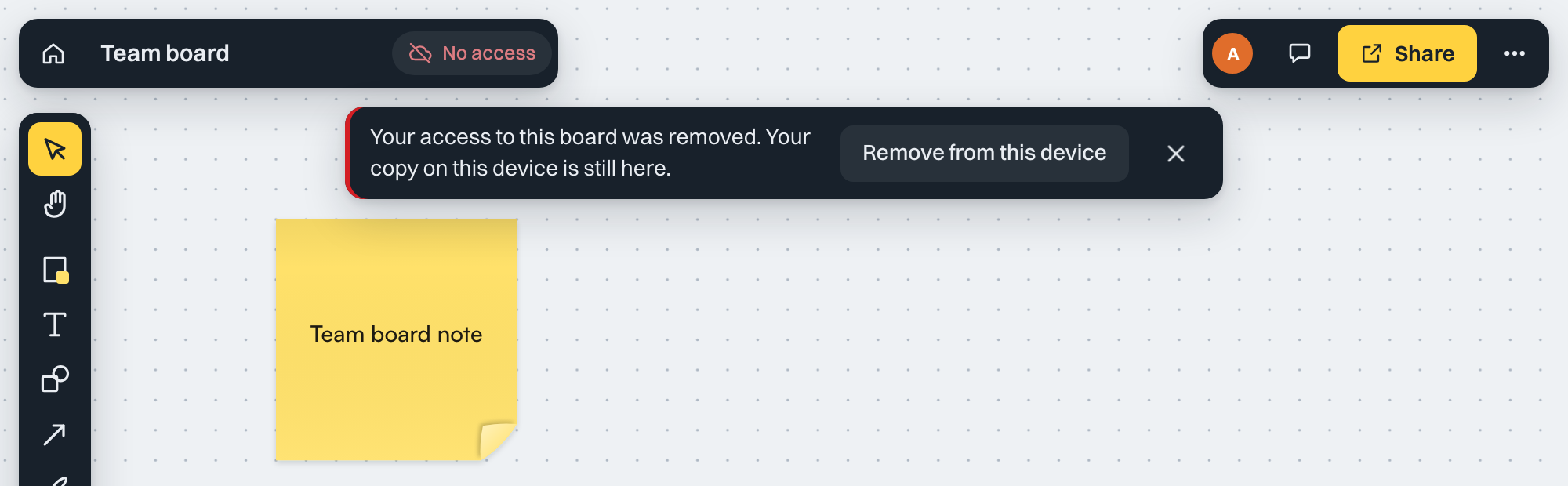
The server checks access while you work, so a change applies to a board that is already open.
- Demoted to viewer or commenter: the server stops accepting your edits to the board straight away. Reload the board to see it in its read-only state.
- Access removed: a banner says "Your access to this board was removed. Your copy on this device is still here." Choose Remove from this device (click twice to confirm) or dismiss the banner.
- Signed out: "Your session has ended. Sign in again to keep syncing this board." Select Sign in.
- No access or board not found: the banner offers Back to boards.
In every case, nothing is deleted from your device. The sync status shows Sign in needed or No access, and your changes stay saved locally.
Read-only workspaces
Hosted workspaces can be locked, for example when a subscription lapses. While a workspace is read-only:
- A thin banner appears above the home screen and the board. If the operator gave no message, it reads "This workspace is read-only."
- Every board opens read-only, with a Workspace is read-only badge instead of View only.
- You cannot create boards, invite people or change roles. You can still read, sign in and sign out.
The workspace owner can restore editing from the billing page (see Admin dashboard). When the workspace becomes writable, open boards switch back on their own, and any edits you made in the meantime are sent. Roles do not change: a viewer stays a viewer.